
Skip to content
  • Feedback
  • Homepage
  • University Clearing
  • University Clearing
  • Getting Started
  • Handling Calls
  • Classic Home
  • End User License Agreement
  • Administrator Knowledge Base
  • Supervisor Knowledge Base
  • Agent Knowledge Base
Agent Knowledge Base
Release Notes
Agent Knowledge Base

Agent Portal and Setup

  • Getting started
    • Your Inbox
    • Agent Portal Overview
    • What I can see on my screen after I log in
    • Changing my password
    • What to do if I forget my login password
    • Agent Setup Guide
      • How to log in
      • Portal walk through
      • Status Settings
      • Making an internal call to another agent or group
      • Selecting how I receive calls
  • Communication
    • Configuring audio settings
    • Changing my contact method
    • Contacting a customer
    • Searching a queue
  • Status management
    • Using the status bar
    • Changing my current status
    • Indicating if I’m available or on a break
    • Making myself available on specific channels and/or queues only
    • Viewing the status of other agents and queues
  • Recent activity
    • Recent activity summary
    • Viewing detailed statistics
    • Viewing summary information for queues in my group(s)

Handling Calls

  • Inbound Calls
    • Answering a call
    • Having calls delivered to me automatically
    • Pick up a call that is ringing on another agent’s phone
  • Outbound Calls
    • Calling from the Outbound panel
    • Calling from the Quick Dial panel
    • Calling from your saved contacts
    • Calling from your recent calls list
  • Call Management
    • What I can see on my screen when I’m on a call
    • Using the call control buttons
    • Tasks to complete when your call ends
    • Recording a call
    • Transferring a call to a third party
    • Viewing recent calls
    • Receiving desktop notifications
    • Agent Scripts for calls

Handling Emails

  • Logging into your email server
  • Handling emails
  • Responding to an email
  • Sending an ad-hoc email
  • Activating an email
  • Forwarding an email
  • Parking an email
  • Classifying an email
  • Inserting text blocks
  • Selecting email attachments
  • Viewing and taking pending emails from queues
  • Deciding which queue’s items to take first
  • Returning or transferring an item to a queue
  • Viewing the history of an email
  • Viewing the activity timeline of an email

Handling SMS Messages

  • Sending an SMS message
  • Sending SMS messages during webchats

Handling Webchats

  • Introduction to Webchat
  • Using Webchat
  • Using Webchat Templates
  • Activating and Parking a Webchat
  • Transferring Webchats
  • Classify and Wrap-up a Webchat
  • Sharing Chat History with a Customer
  • Webchat
    • Handling webchats
    • Responding to a webchat
    • Activate a webchat
    • Sending a chat history to the webclient
    • Flagging a webchat as abusive
    • Returning or transferring an item to a queue
    • Viewing pending webchats and taking webchats from queue(s)
    • Deciding which queue’s items to take first
    • Contacting a customer via the current chat session
    • Pausing a webchat
    • Using the chat control buttons
    • Extending or ending my wrapup time
    • Inserting a template
    • Classifying a webchat

Handling Payments

  • Managing Live Payments
  • Taking, sending or refunding a payment
  • Taking pending payment transactions from queues
  • Viewing payment transactions

Scheduled calls

  • Scheduled calls
  • Scheduling a callback for the current call
  • Scheduling a callback between calls
  • Viewing and changing times for scheduled callbacks
  • Making a scheduled callback

Contacts

  • Confirming a customer’s contact record
  • Managing contacts
  • Viewing a customer’s contact history
  • Contacting a customer by email or social media
  • Updating a customer’s details
  • Looking up a customer’s contact record
  • Creating a new contact record

Third-party CRM Platforms

  • Third-party CRM platforms overview
  • Using the Contact softphone within Salesforce
  • Using the Contact softphone within MS Dynamics
  • Using the Contact softphone within Zendesk
  • CRM Troubleshooting
  • CareConnect
    • CareConnect introduction
    • Making outbound calls to patients
    • Receiving patient’s calls
    • Searching for patient’s details
  • ConConnect
    • Logging into ConConnect
    • Making an Outbound call using ConConnect
  • CareConnect 2.0
    • CareConnect 2.0 Introduction
    • Enhancements and new features for CareConnect 2.0
    • View a patient’s details using CareConnect 2.0
    • Using CareConnect 2.0 to handle patients calls
    • Managing your status and availability using CareConnect
    • Sending a SMS using CareConnect

Troubleshooting

  • Capturing intermittent faults using Bug Tracking
  • Troubleshooting issues with receiving calls
  • Checks to resolve issues with WebRTC
  • Diagnosing Call Quality Issues with WebRTC Diagnostics
  • Home
  • Docs
  • Third-party CRM Platforms
  • CareConnect 2.0
  • View a patient’s details using CareConnect 2.0
View Categories

View a patient’s details using CareConnect 2.0

CareConnect links to the EMIS and SystmOne CRM systems and can be used to search for patients details such as their address, journal information and appointment history. You will be able to view:

  • Patient details including name and address
  • Call options
  • Journal including Reminders, Alerts, Sensitivities & Allergies and Referrals
  • Appointment history

Search for a Patient #

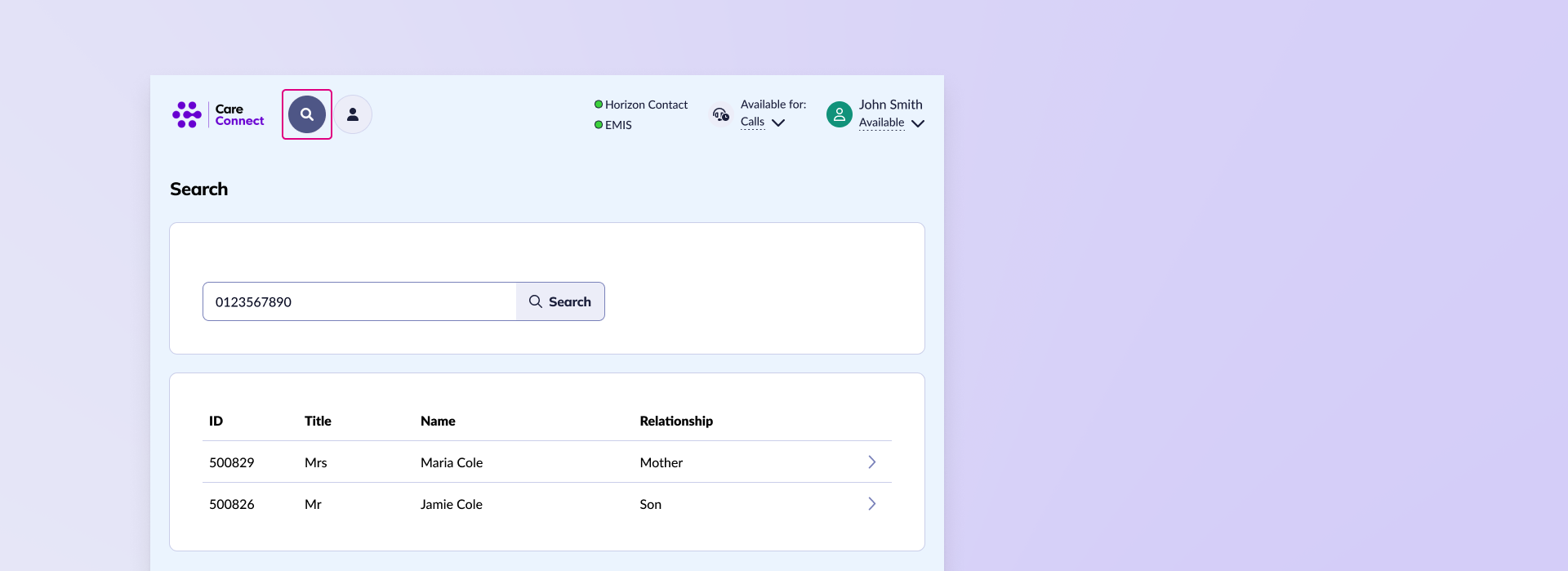
If you have a patients number to hand you can use this to search for their details within CareConnect. If a number is associated with multiple patients you can select the relevant one and then view their details.
Patients Details #

When viewing a patient there are a number of tabs that you can navigate between to view information about them, initiate calls and send SMS messages.
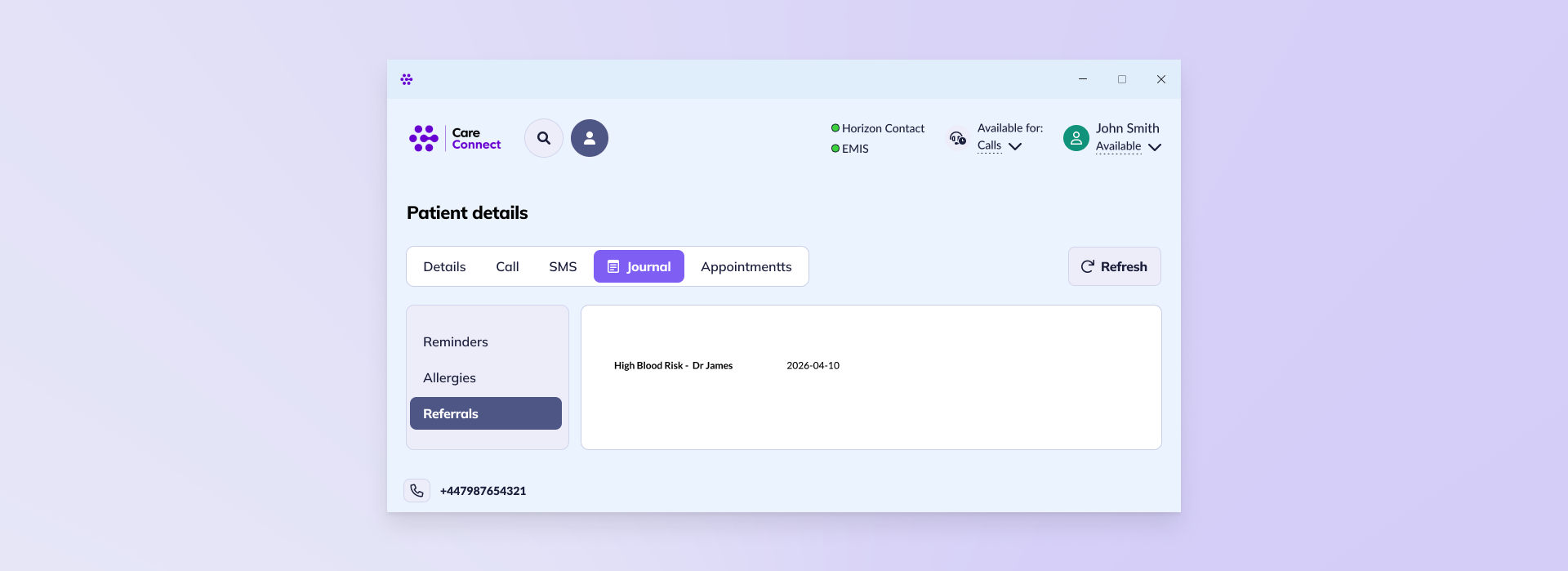
  • Details: The details tab lists information about the patient including their name and address
  • Call: You can use the call tab to make outgoing calls to the patient
  • SMS: You can use the SMS tab to send SMS messages to patients
  • Journal: The journal will display specific information about the patient such as any reminders, allergies and referrals
  • Appointments: The appointments tab will show any previous appointments

How did you find this training?
Enhancements and new features for CareConnect 2.0Using CareConnect 2.0 to handle patients calls
Table of Contents
  • Search for a Patient
  • Patients Details

End User License Agreement