
CareConnect means you can handle patient calls without needing to navigate between the Contact Agent Portal and the EMIS/SystmOne systems. This allows you to focus on helping your patients and work more efficiently.
CareConnect enables you to:
- Search for patients and make outgoing calls
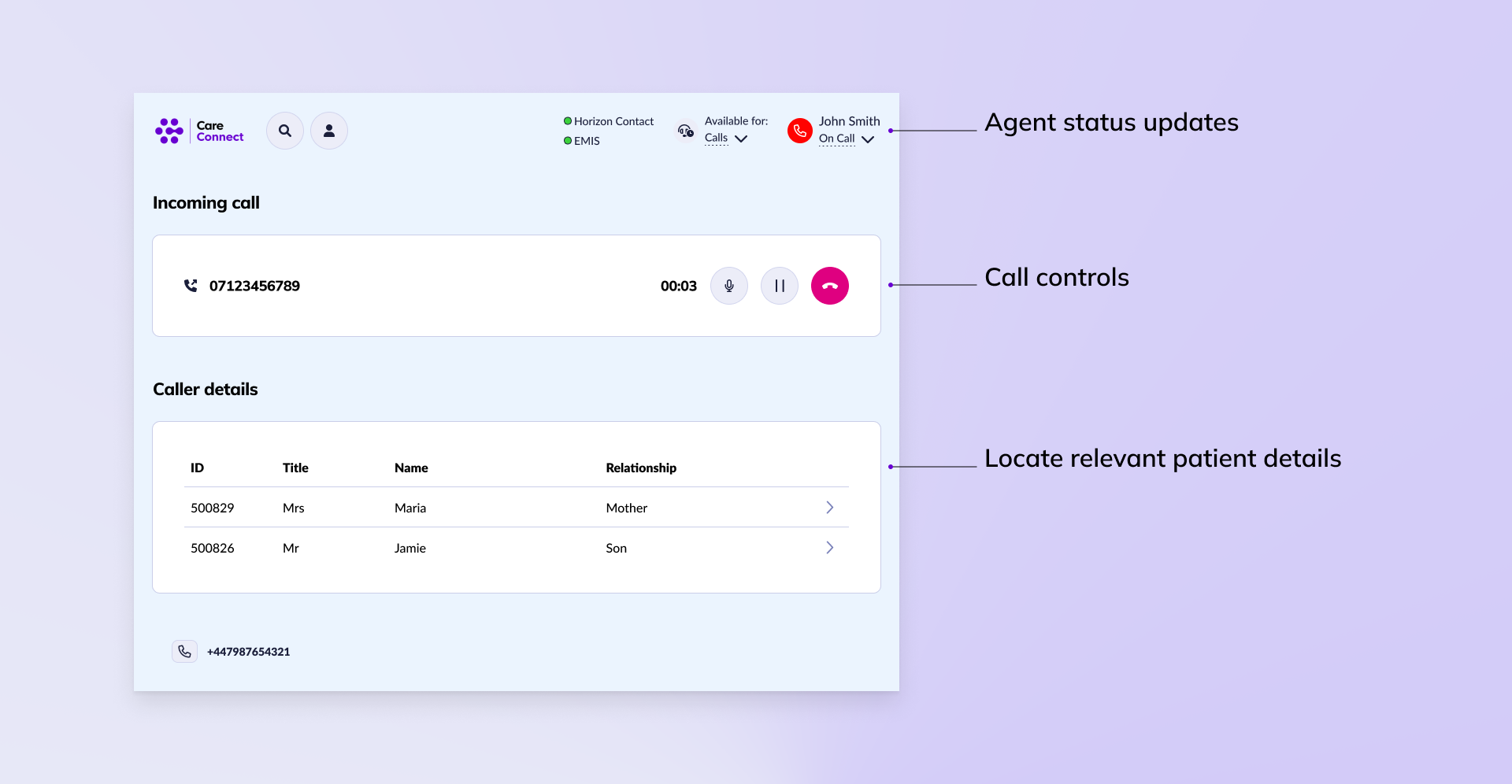
- Answer incoming calls and view patients details
- Complete call wrap-up procedures
When you are on an active call your status will update within CareConnect and your Agent portal to reflect the fact you are unavailable.
| Note: In order to handle calls you need to already be logged into EMIS/SystmOne and the CareConnect app. |
Answer Incoming Calls #
When you receive an incoming call CareConnect will automatically display any patients that are associated with the number the caller is ringing from. You will be able to select their details and answer the call so you can see any relevant information as you are handling the call.
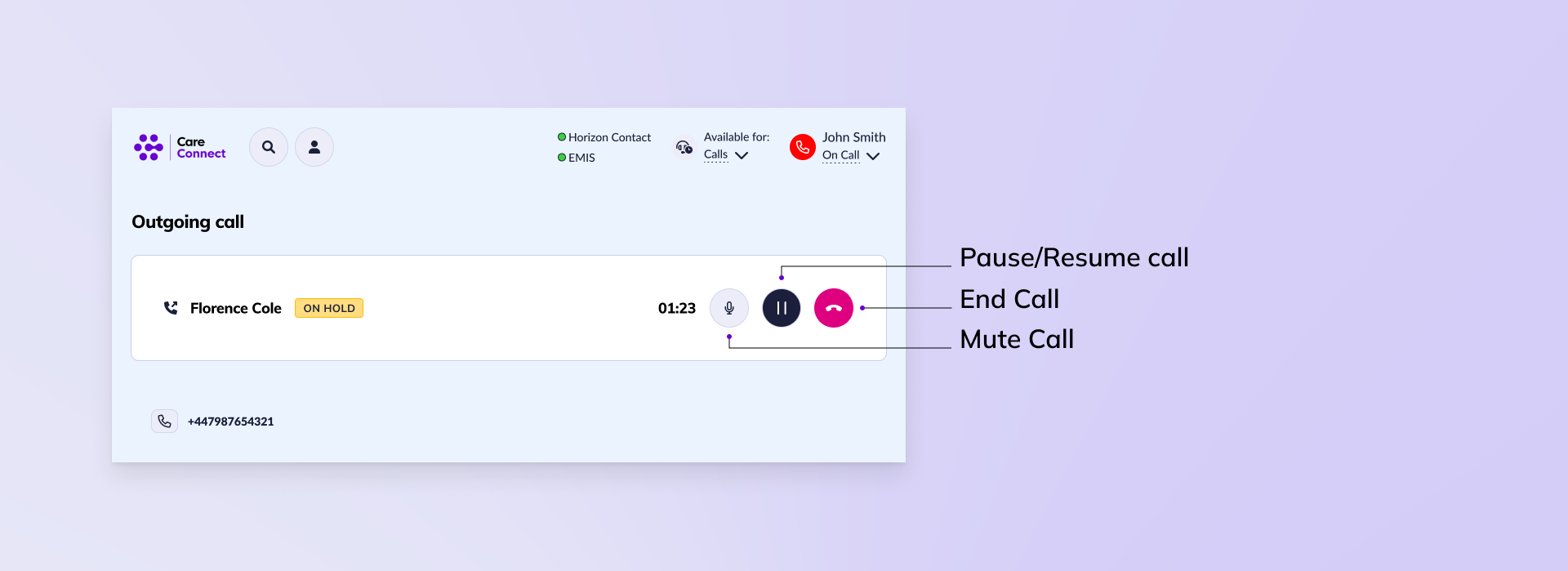
| Note: Please note that the call controls you have available will vary if you are using WebRTC. If you are not using WebRTC you won’t have access to put calls on hold or mute them. |
Making an Outbound Call From CareConnect #
To make an outbound call you either need to have made the patient the active patient within EMIS or SystmOne or have the patients number to hand so you can search for them within CareConnect.
- If you have already made the patient the active patient in EMIS or SystmOne you can simply click the active patient icon in CareConnect and then follow the steps below to start an outgoing call.
- If you haven’t made the patient the active patient but you have their phone number to hand you can use the search functionality in CareConnect to find the patients details and then start an outgoing call.
To start an outgoing call:
- Locate the relevant patient to view their details (either through search or selecting active patient)
- Click the Call tab
- Select the relevant queue and destination
- Click Call
The outbound call will be initiated.
Handling Calls using CareConnect #
Once an incoming call has been answered or an outgoing call has been initiated call controls will be displayed. You’ll be able to mute calls and put them on hold whilst still having access to the patients details within CareConnect.
Once a call has been completed you’ll be able to complete the wrap-up activities without needing to go into the Contact Agent portal.
Call Transfers #
It is not possible to transfer calls within CareConnect. If you are using WebRTC you will need to make sure you have selected your web browser as your contact method in order to receive transferred calls.
Complete Call Wrap-up #
Just like you would in the Agent portal, once a call has ended you will be presented with wrap up actions to complete. This includes:
- Selecting a classification from the dropdown
- Adding additional time if needed to complete the wrap up.
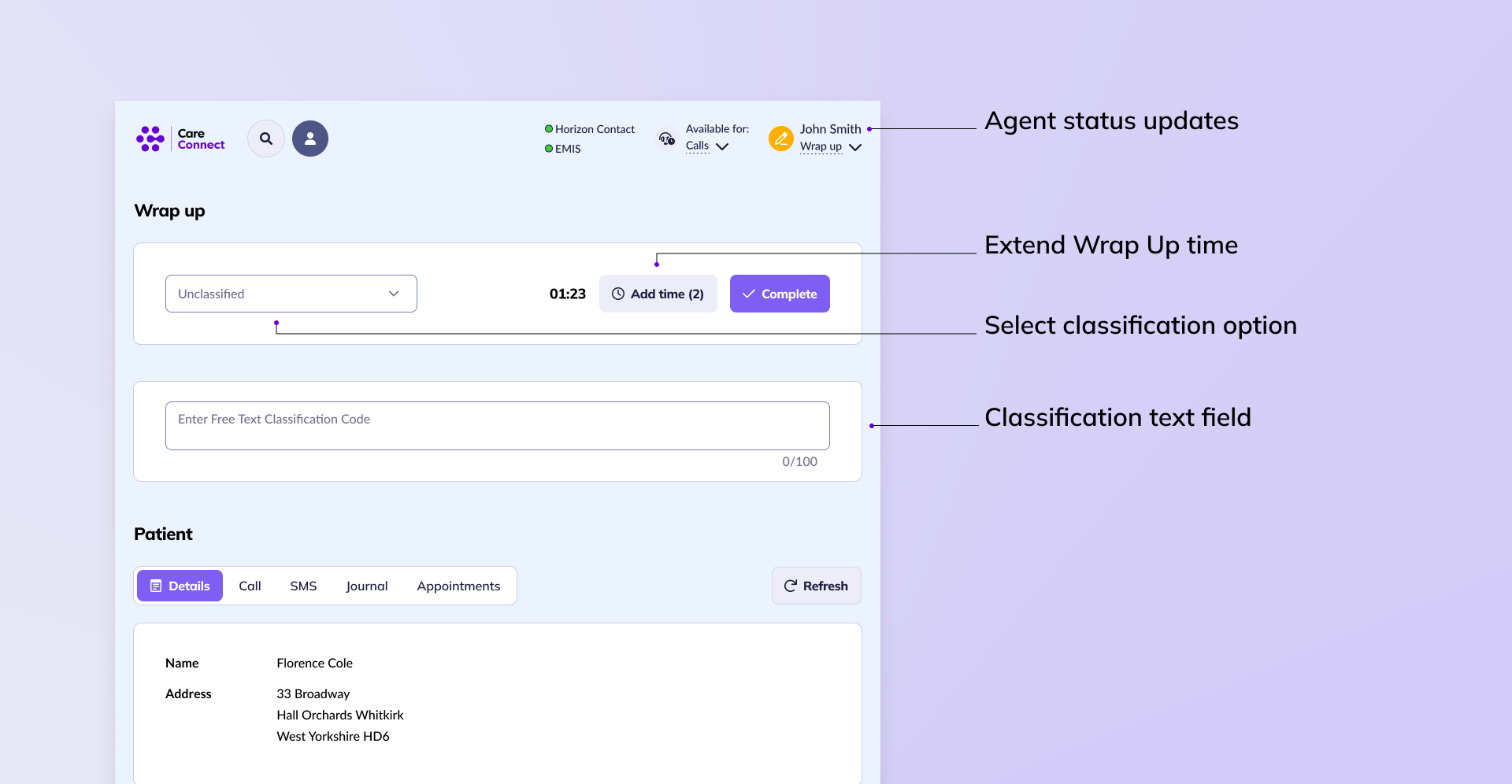
Once the call has been classified you can click complete and your status will revert back to Available so you can answer calls.