
To work on a webchat, it must be in your inbox. Depending on how webchat has been configured by your company administrator, incoming chats are either automatically allocated to your inbox or placed into webchat queues to be picked up by an agent.
As an agent, you can transfer webchats from any queue you are assigned to into your inbox so you can work on them. You can also transfer webchats back to a queue, making them available for another agent to pick up. If you are assigned to multiple webchat queues, you have the option to return a webchat to its original queue or transfer it to a different queue as needed.
Transfer from a queue into your inbox #
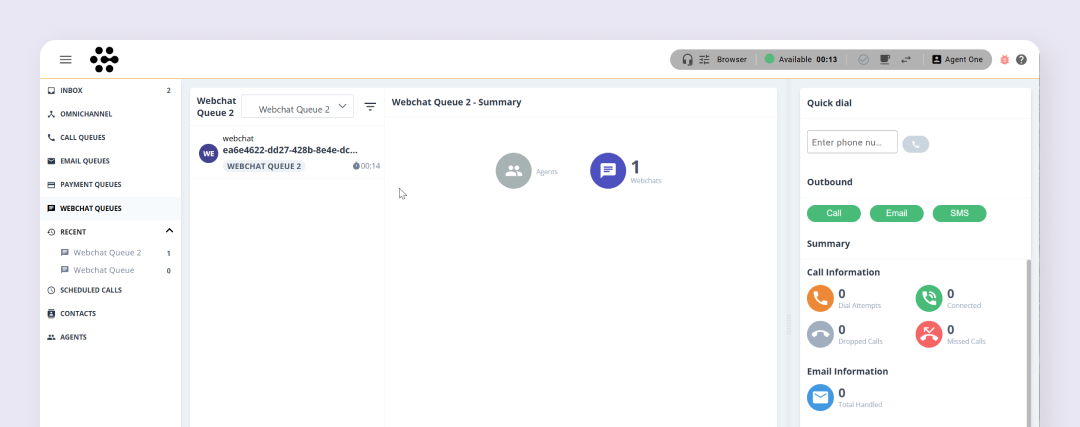
If auto-allocation has not been configured by your company administrator chats will arrive into queues waiting to be picked up. You will be able to see the chats that are available in queues you have been assigned to.
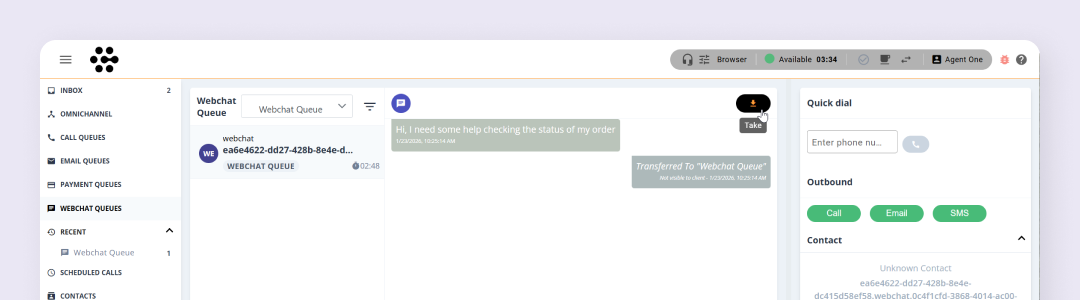
To transfer a chat from the queue into your inbox click the Take icon.
Transfer from your inbox back to original queue #
Once a chat has been added to your inbox it won’t be available for other agents to work on. If required you can send the chat back to the original queue which may be useful if you are going on a long break or logging off. This will allow another agent who is assigned to the same queue to pick up the webchat and continue the conversation. Chats that are being returned to the queue must be currently active.
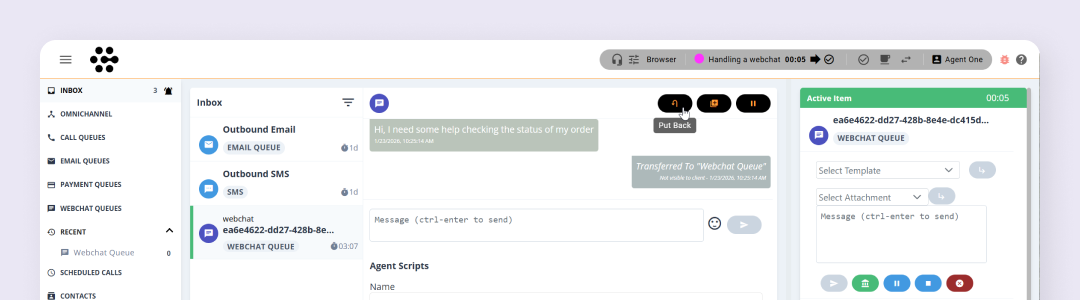
To return a webchat back to it’s original queue:
- Select the relevant webchat in your inbox
- Ensure the webchat is paused
- Click the put back icon
Transfer from inbox to a different queue #
It’s also possible to transfer a webchat from your inbox to another queue that you are also assigned to. This is useful if a certain team member or queue handles specific inquiries. Chats that are being transferred to a different queue must be currently active.
To transfer an active webchat to another queue:
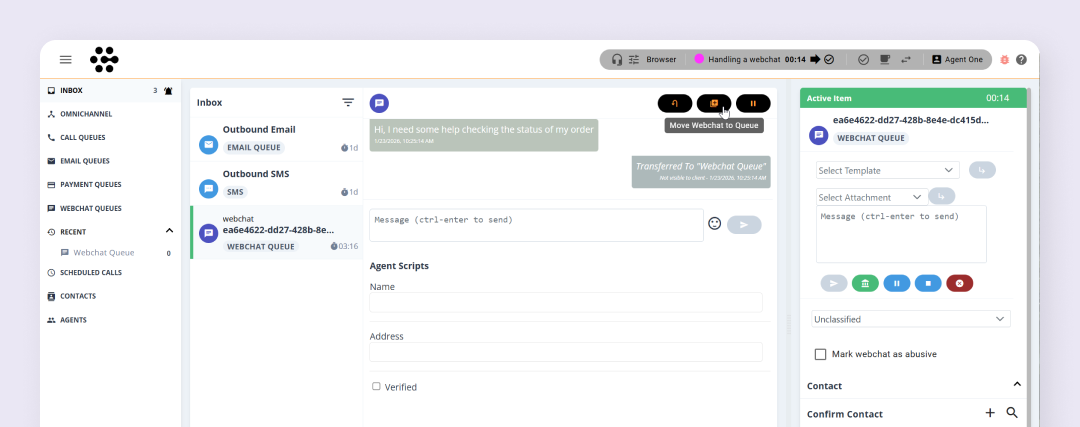 Click Move Webchat to Queue
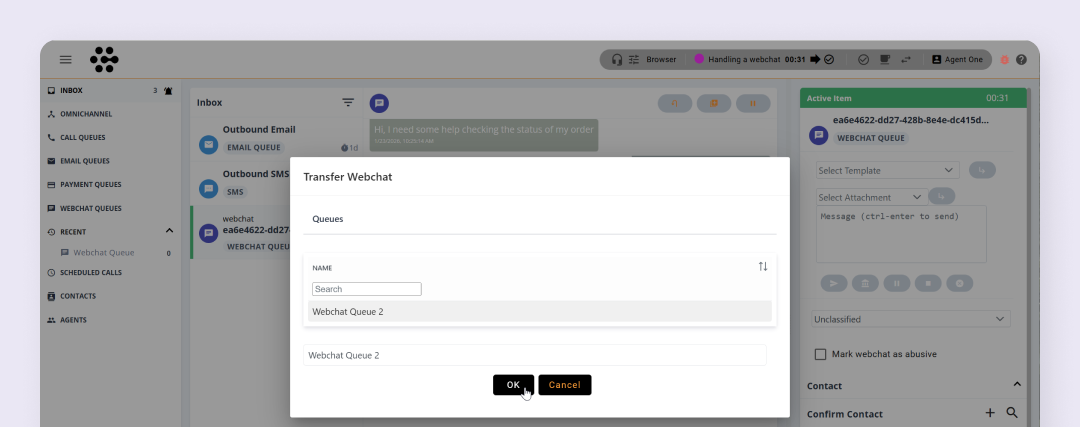
- Select the relevant webchat in your inbox
- Ensure the webchat is active
- Click the Move Webchat to Queue icon
- Select the appropriate queue
- Click OK
The webchat will be transferred.