
Skip to content
  • Feedback
  • Homepage
  • University Clearing
  • University Clearing
  • Getting Started
  • Handling Calls
  • Classic Home
  • End User License Agreement
  • Administrator Knowledge Base
  • Supervisor Knowledge Base
  • Agent Knowledge Base
Agent Knowledge Base
Release Notes
Agent Knowledge Base

Agent Portal and Setup

  • Getting started
    • Your Inbox
    • Agent Portal Overview
    • What I can see on my screen after I log in
    • Changing my password
    • What to do if I forget my login password
    • Agent Setup Guide
      • How to log in
      • Portal walk through
      • Status Settings
      • Making an internal call to another agent or group
      • Selecting how I receive calls
  • Communication
    • Configuring audio settings
    • Changing my contact method
    • Contacting a customer
    • Searching a queue
  • Status management
    • Using the status bar
    • Changing my current status
    • Indicating if I’m available or on a break
    • Making myself available on specific channels and/or queues only
    • Viewing the status of other agents and queues
  • Recent activity
    • Recent activity summary
    • Viewing detailed statistics
    • Viewing summary information for queues in my group(s)

Handling Calls

  • Inbound Calls
    • Answering a call
    • Having calls delivered to me automatically
    • Pick up a call that is ringing on another agent’s phone
  • Outbound Calls
    • Calling from the Outbound panel
    • Calling from the Quick Dial panel
    • Calling from your saved contacts
    • Calling from your recent calls list
  • Call Management
    • What I can see on my screen when I’m on a call
    • Using the call control buttons
    • Tasks to complete when your call ends
    • Recording a call
    • Transferring a call to a third party
    • Viewing recent calls
    • Receiving desktop notifications
    • Agent Scripts for calls

Handling Emails

  • Logging into your email server
  • Handling emails
  • Responding to an email
  • Sending an ad-hoc email
  • Activating an email
  • Forwarding an email
  • Parking an email
  • Classifying an email
  • Inserting text blocks
  • Selecting email attachments
  • Viewing and taking pending emails from queues
  • Deciding which queue’s items to take first
  • Returning or transferring an item to a queue
  • Viewing the history of an email
  • Viewing the activity timeline of an email

Handling SMS Messages

  • Sending an SMS message
  • Sending SMS messages during webchats

Handling Webchats

  • Introduction to Webchat
  • Using Webchat
  • Using Webchat Templates
  • Activating and Parking a Webchat
  • Transferring Webchats
  • Classify and Wrap-up a Webchat
  • Sharing Chat History with a Customer
  • Webchat
    • Handling webchats
    • Responding to a webchat
    • Activate a webchat
    • Sending a chat history to the webclient
    • Flagging a webchat as abusive
    • Returning or transferring an item to a queue
    • Viewing pending webchats and taking webchats from queue(s)
    • Deciding which queue’s items to take first
    • Contacting a customer via the current chat session
    • Pausing a webchat
    • Using the chat control buttons
    • Extending or ending my wrapup time
    • Inserting a template
    • Classifying a webchat

Handling Payments

  • Managing Live Payments
  • Taking, sending or refunding a payment
  • Taking pending payment transactions from queues
  • Viewing payment transactions

Scheduled calls

  • Scheduled calls
  • Scheduling a callback for the current call
  • Scheduling a callback between calls
  • Viewing and changing times for scheduled callbacks
  • Making a scheduled callback

Contacts

  • Confirming a customer’s contact record
  • Managing contacts
  • Viewing a customer’s contact history
  • Contacting a customer by email or social media
  • Updating a customer’s details
  • Looking up a customer’s contact record
  • Creating a new contact record

Third-party CRM Platforms

  • Third-party CRM platforms overview
  • Using the Contact softphone within Salesforce
  • Using the Contact softphone within MS Dynamics
  • Using the Contact softphone within Zendesk
  • CRM Troubleshooting
  • Care Connect
    • Care Connect introduction
    • Making outbound calls to patients
    • Receiving patient’s calls
    • Searching for patient’s details
  • ConConnect
    • Logging into ConConnect
    • Making an Outbound call using ConConnect

Troubleshooting

  • Capturing intermittent faults using Bug Tracking
  • Troubleshooting issues with receiving calls
  • Checks to resolve issues with WebRTC
  • Diagnosing Call Quality Issues with WebRTC Diagnostics
  • Home
  • Docs
  • Handling Webchats
  • Activating and Parking a Webchat
View Categories

Activating and Parking a Webchat

To respond to a customer webchat, the chat must be in your inbox and set to active. Once you activate a webchat, your status updates to Handling a chat, and the Active Item Dialogue displays the tools you need to manage the conversation. These include options to insert templates, type and send responses, and assign a contact to the chat.

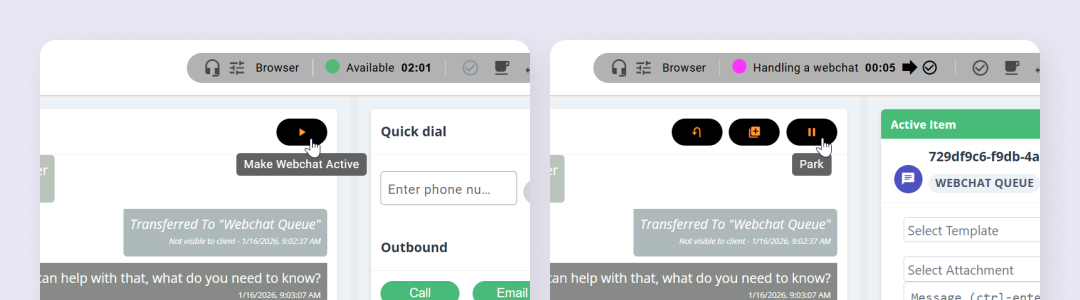
If needed, you can park an active webchat. Parking temporarily pauses the chat in your inbox so it can be activated again later. This allows you to retain ownership of the conversation without being marked as actively working on it. You may choose to park a webchat if you are switching between items or plan to return to the chat at a later time.

Activating and Parking a Webchat is done by clicking the relevant icons at the top of the chat area:
Park Behaviours #

  • A webchat can be parked while it is in progress or during the wrap‑up stage. If you park a chat during wrap‑up, the wrap‑up timer is also paused. When you reactivate the chat, the wrap‑up period resumes from where it left off.
  • If all of your webchats are parked, the system may automatically present a new incoming webchat to you, depending on your configuration and availability.
  • If you are interrupted by a phone call while handling a webchat, your active webchat is parked automatically and remains in your inbox, ready to be activated again later. If the customer ends the chat while you are on the call, the webchat is placed into a parked wrap‑up state. Once the call ends, the webchat automatically resumes and moves into an active wrap‑up state so you can complete any required wrap‑up actions.

How did you find this training?
Using Webchat TemplatesTransferring Webchats
Table of Contents
  • Park Behaviours

End User License Agreement